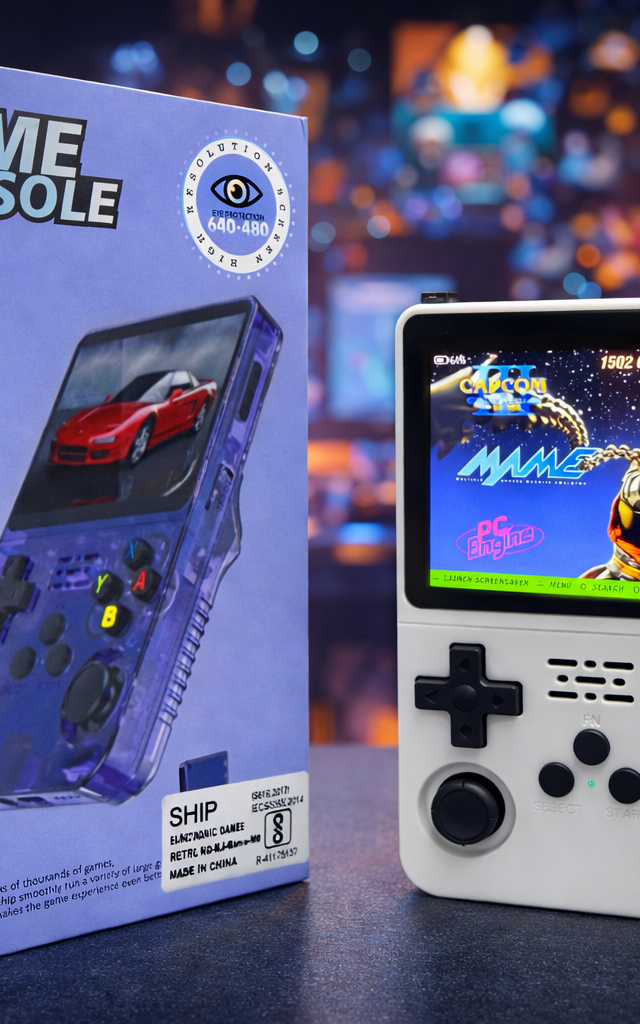
How to add games to the R36S (and any retro handheld)
ConsoleDotHub guide
The R36S (and other Linux handhelds) let you add your own games from the microSD card. Here is the step-by-step process — and the one rule that keeps you on the right side of the law.
How the R36S stores games (microSD card)
The R36S — like the R50S and most Linux handhelds — reads games from its microSD card, organised into folders by system: one folder for SNES, one for Genesis, one for PS1, and so on. To add a game you place the correct file type into the matching system folder, then refresh the menu.
Step by step: adding games to the R36S
Power the device off and remove the microSD card, put it into your computer with an adapter, copy your game files into the correct system folder, safely eject, reinsert the card, and rescan or refresh from the device menu. On the R36S, community firmware such as ArkOS or muOS makes this tidier and adds box-art and better organisation.
The one legal rule
The emulators and the handhelds themselves are legal. Games (ROMs) are copyrighted, so the clean position is to use only copies of games you actually own. We do not supply or link to copyrighted game files — please only add games you are entitled to.
FAQ
How do I add games to the R36S?
Power it off, remove the microSD card, copy your game files into the matching system folder on a computer, reinsert the card and refresh the menu. ArkOS or muOS firmware makes managing systems and box-art easier.
Do I need a computer to add games?
Usually yes — you copy files onto the microSD card from a computer. Some community-firmware setups also allow transfer over your home network.
Will adding games break the console?
No — these devices are built to read games from the SD card. Just keep a backup copy of the card before making big changes.